Recovering files from beyond the grave using PhotoRec
You know the drill. That passwords.txt is no longer needed. Right click -> Delete. Empty Trash. That's it.

Well, not quite.
When I was younger, I used to hear stories about people recovering deleted files. Not from opening the Recycle Bin and restoring files one by one. No. There were rumors that deleted files weren't actually sent to the abyss. That, one could recover lost items even after clearing them from whatever OS bin they were last seen in.
Recently, I was able to do just that, using TestDisk and PhotoRec. These programs bundled together play a key role in Digital Forensics, allowing researches to walk back a system to a prior state and analyze all manner of files.
Using my collection of decades old hardware, I saw this as a perfect opportunity to explore TestDisk, well PhotoRec specifically, and see just what it could recover from my old systems.
To quote their wiki:
TestDisk can
- Fix partition table, recover deleted partition
- Recover FAT32 boot sector from its backup
- Rebuild FAT12/FAT16/FAT32 boot sector
- Fix FAT tables
- Rebuild NTFS boot sector
- Recover NTFS boot sector from its backup
- Fix MFT using MFT mirror
- Locate ext2/ext3/ext4 Backup SuperBlock
- Undelete files from FAT, exFAT, NTFS and ext2 filesystem
- Copy files from deleted FAT, exFAT, NTFS and ext2/ext3/ext4 partitions.
At this point, I'm only interested in those final two features. Now there's a key difference in the TestDisk/PhotoRec bundle.
- TestDisk → fixes disks and filesystems
- PhotoRec → recovers individual files by scanning raw data
Since I wanted to 'undelete files', I only needed to use PhotoRec.
Targets in scope
I had quite a few devices to choose from, including:
- Toshiba laptop (1TB), 13yrs old
- SD card used on GoPro (7GB), 10 yrs old
- PSP memory card (32MB), >20 yrs old
- iPod video (30GB), ~20 yrs old
- Windows 10 PC (???GB), 16 yrs old
Recovering files is no quick task and depending on the size of your storage & partitions, you can be there for hours waiting for results. Not only that, the recovered files themselves need to be stored somewhere, taking up more even more space. I wisely chose to limit my first PhotoRec attempt to the following two items:
- Toshiba laptop (1TB), 13yrs old
- SD card used on GoPro (7GB), 10 yrs old
File filtering
PhotoRec allows you to filter scans for specific file types. Increasing the number of file extensions you scan for increases the time it takes for PhotoRec to perform. In my case, I wanted to play it short (and safe) and stuck to the following file formats:
- Toshiba:
.jpg - SD card:
.png,.mp4,.jpg
The whole list of file formats recovered by PhotoRec contains more than 300 file families representing more than 480 file extensions.
Running PhotoRec
I didn't really prepare for this. I was booting PhotoRec direct from a USB plugged into my Toshiba laptop and had 0 expectations on the expected # of files recovered, recovery duration & overall file quality. During the run steps, I had to select a target location to store the recovered files. I didn't have anything else lying around so I chose the already plugged-in 7GB USB, and realistically I had only 5.5-6GBs worth of storage available.
I should have also re-read this warning from the TestDisk wiki before starting ...
Do not store the recovered files on the source filesystem. Otherwise lost data may be overwritten and definitively lost.
Well, after running the process it actually went quite well. Here are the results:
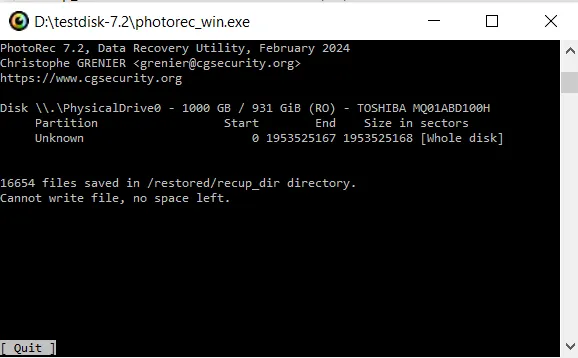
- Recovery took >5 hours
- PhotoRec managed to recover >16k files
- Those files took up all the remaining space on the USB
- Recovery was terminated due to insufficient space
- PhotoRec generated 30 folders containing thousands of files
Analysis
- Pretty bloody good result, albeit messy
- Although PhotoRec recovered a ton, it does not retain the original file names or folder structures they existed in
- It pulled in all kinds of
.jpgs: from LinkedIn photos, to web avatars, to web page logos, to social media chat profile pictures with 3 different sizes, to duplicates of the same files within different folders - Combing through the results was a tedious, time intensive process and if I had a script (or LLM I guess), I could have split up files based on size or some other familiar pattern
- Each folder contained a mixture of images & image sizes, making it visually hard to recognize what was useful vs what was garbage
- Upon terminating, PhotoRec was ready to continue the recovery should I provide a larger storage device, meaning I could pick up where it stopped
Overall it performed well for the Toshiba laptop and given I used it for a number of years, I could see why it recovered so many files.
Running on SD Card
Now, with a little more experience under my belt I was ready see what files I could recover for my GoPro (2?) SD card. I booted PhotoRec off the Toshiba laptop directly this time and plugged in the SD card adapter. I chose the output destination to be the same SD card. This is not suggested but I was confident it would hold, given that I only toyed with it for a few weeks from memory.
Results
- Blazing quick this time around
- 1 folder, 12 files
- <1GB worth of files
- Took <1 minute
Not underwhelming but not surprising either. Pretty much the opposite of this:

Taking it all in
PhotoRec is an absolutely vital tool to preserving files across hardware generations. Definitely don't scan ALL files right from the start. I recommend choosing only the types you know (or hope) previously existed on the system and slowly enable different file filters from there. Always backup and always have your machine plugged in charging. The last thing you want is for your data to become corrupted during recovery.
From a security standpoint, forensics tools such as PhotoRec (and TestDisk) prove invaluable. Bad actors could restore previously deleted files from pre-owned devices, breaching all kinds of privacy. How can a typical end user know when something is truly deleted? Alternatively, the tech support use cases are massively beneficial as PhotoRec could save someone's day (potentially their life!) by being able to restore decades lost files & documents in minutes. It's a fantastic program and a massive thanks to the developers.
As always, use these tools with caution and continue backing up your data (if you care about it long-term). My goal here was to use PhotoRec to put those old-school rumors to the test. In doing so, I got to experience the wise words of Uncle Ben:

I'm glad I tried PhotoRec out, as it gave me even more reason to preserve my older machines and memory cards. Saying that, it does feel like playing lottery as 15-20 year old me definitely had a wide variety of files back in the day. I am equally excited as I am terrified about what I can bring back to life.